Introduction and overview
In order to interact with he LOFAR system (proposing, executing observations, submitting helpdesk issues, and staging and downloading data) users need to be recognized by the system, i.e. then need to have an account. Not all services require one, for example inspecting public metadata from the Long Term Archive (LTA) can be done anonymously. Below we outline the steps needed to obtain (an) account(s) for the various tools and services of LOFAR. Please note that the information given is always subject to change.
Long Term Archive (LTA) account / LOFAR account
For the time being, access to the LTA itself will require the use of the old LOFAR user account. In case you do not have a LOFAR account yet, this can be requested through the SDC Helpdesk (which can be located here, or via the button in the top bar on this page) by:
- Creating a ticket and requesting an LTA account to be created. In the ticket, specify your first (given) name, last name, provide the desired username for your account, your email address (preferably institutional), phone number and affiliation to be used for your LTA account (if they need to be different from the ones used for your helpdesk account).
- The Helpdesk will grant you the needed privileges to access the LTA and notify you via the created JIRA ticket.
- Note that you will have to create a Helpdesk user account to log into that system if you are a new user. Users can create a Helpdesk account by following a link on the login page.
First log in
When you login to the LTA for the first time after being granted access, you need to reset your password. To reset your password, follow the procedure stated below:
- Go to the LTA webpage
- Click on the LOGIN button at the top-right corner of the page
- Click on Change Password
- Then click on Forgotten Password
- And reset your Password
This procedure is necessary to properly couple the permissions of your LOFAR account to your LTA account. Note that the new password needs to synchronise with the system, so please allow up to 10-15 minutes for your new password to work.
Lost password
In the case of a lost password (for your LTA account), you can create another one as follows. You will have to provide your account name:
- Go to https://lta.lofar.eu/ and click on the LOGIN button at the top-right corner of the page
- Click on 'Change Password' and
- If old password is known: log in, select 'Change Password' and follow instructions
- if old password is not known: click on 'Forgotten Password' and follow instructions
Federated Authentication and Authorization Infrastructure (FAAI) account
The SDC FAAI solution builds on SRAM (https://sram.surf.nl/) and aims to allow the majority of the users to log in with an institute account they have. However, not all institutes are connected to the EduGAIN infrastructure that SRAM (and other research FAAI providers) is using.
If a user can not use an account from a connected institute, they should create an account/identity with one of the EduID services that SRAM supports. Here, we describe the use of the Dutch EduID service (https://eduid.nl/) which allows anyone that requires access to Dutch research services to create an account. Note that information on the EduID site is a bit biased towards use by students which may confuse new users.
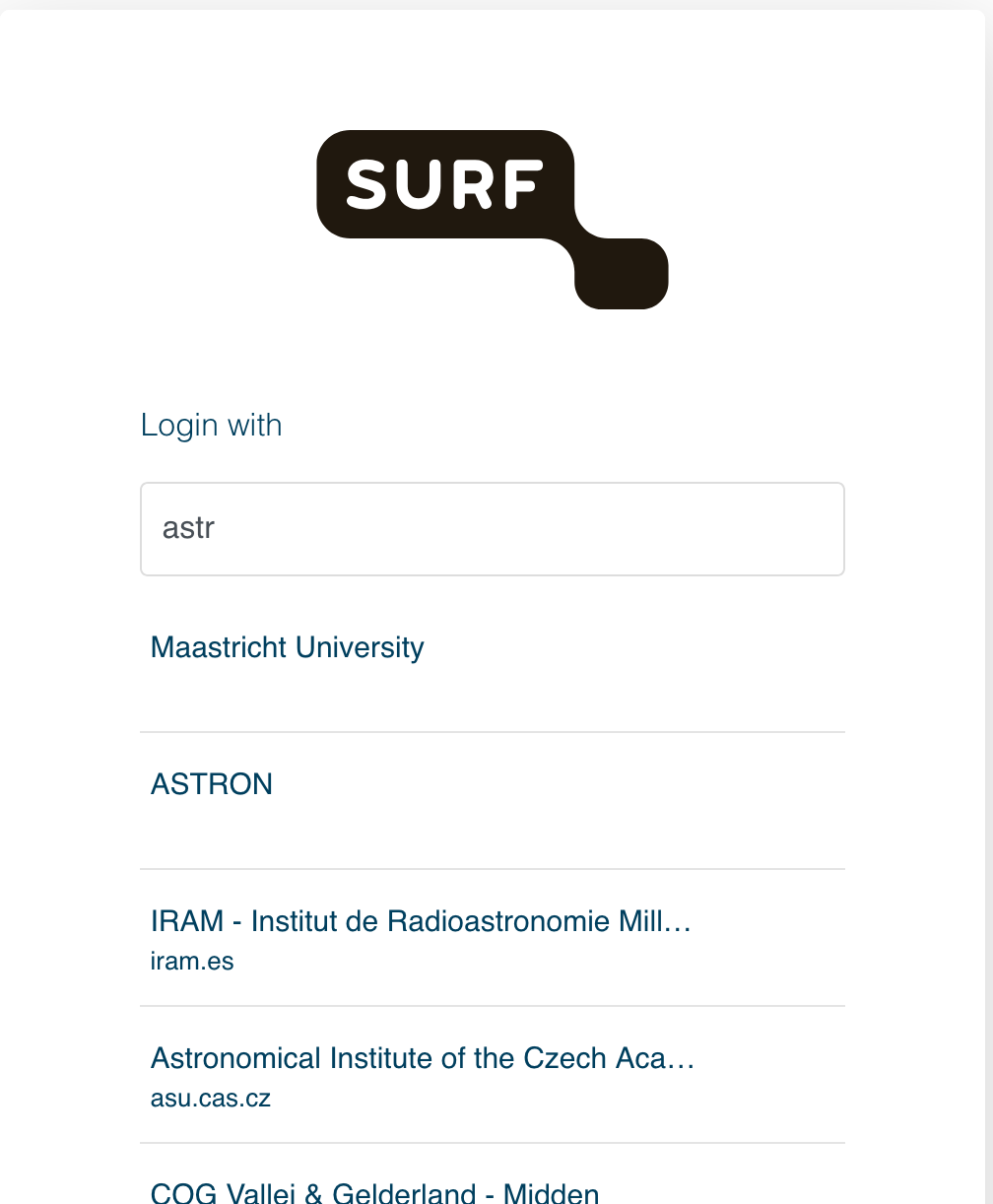
Since FAAI allows logging in with home institute accounts, it is in most cases not necessary for a user to create an account. The easiest way for a user to verify if they can use their institute account is to start typing the institute name on the SURF/SRAM login page (reached when clicking on 'Log in' on any of the FAAI connected LOFAR Data Services):
LOFAR Services that require an FAAI account
All LOFAR (data) services in the future will use FAAI. This means that you will be able to log in using the credentials of your own institute if it is connected to the EduGAIN federation for research. You will be asked to select your institute when logging in, and at that point search for available institutes. If you do not have access to an institute account that is part of the EduGAIN federation, you can sign up for an eduID.
The LOFAR proposal tool (TULP), the Telescope Management and Specification system (TMSS) as well as the data stager service StageIT use an FAAI account. Before accessing StageIT for the first time, you first need to apply for membership of the LOFAR Science Community by clicking this link, and log in with your federation account.
Account creation
If a user does not find an appropriate institute entry, they have the option to create an EduID account. NB SRAM will only accept 'eduID (NL)' accounts that have been configured to use the eduID app for authentication. General user instructions are:
- Go to https://eduid.nl/
- Click 'Create an eduID' and follow the steps on the form. Any mail address that the user has access should work but by policy it must be a strictly personal account.
- Confirm the mail address on the registration page by entering the code in the mail with subject 'Confirm your eduID email with code: ######'
- Some mail providers may consider mails from eduid.nl spam so if no mail is received, the spam box should be checked.
- EduID should send a new mail with subject 'Your eduID has been created'. It contains a link that should now work to get access to the new account within the eduID system, using a unique code that is sent by mail for each login attempt.
- Before using the account to log in to SRAM, install the eduID app and associate it with the account. There are instructions for installing and using the app under the 'Security' section in the personal space on https://eduid.nl.
- The eduID should now allow logging in to/via the SRAM system by selecting eduID (NL) as provider, entering the mail address, and proceeding the authentication by scanning the QR code that is shown with the eduID app.
 If a login screen returns an unexpected error (e.g. that the eduID code had expired), it may help to continue in a new private browser window or instruct the browser to forget/remove all history for eduid.nl and surf.nl sites.